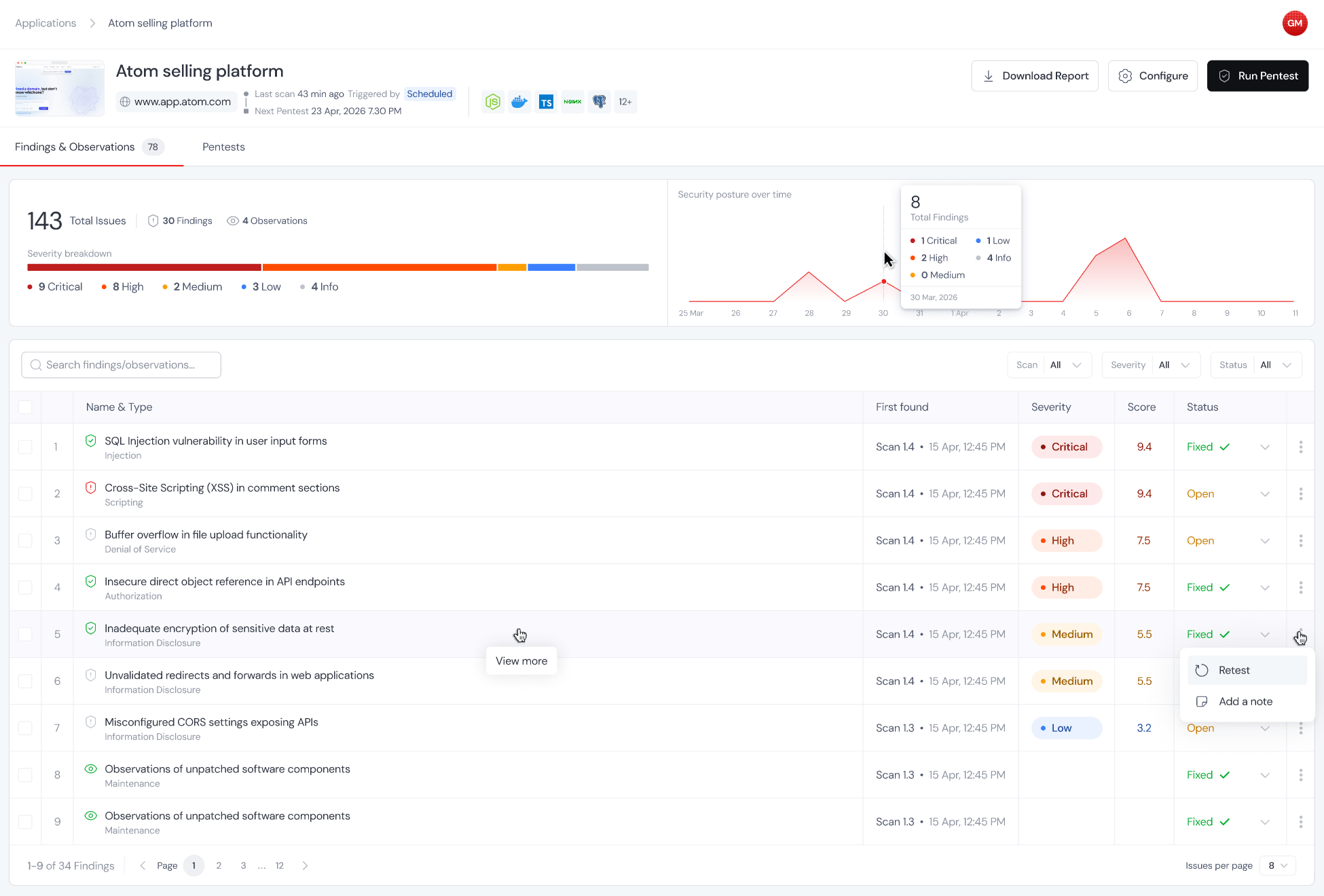
What you’ll see here
1
Findings
Every vulnerability the agent has surfaced on this app across every scan, consolidated into one list so you don’t have to hop between individual reports.
2
Continuous pentesting chart
A view of how scanning activity and findings have trended over time. This one only lights up if you’ve got continuous pentesting running. If you’ve only done one-off scans, there’s nothing yet to plot.
3
Next scheduled pentest
The next upcoming run, based on your schedule trigger. If you don’t have a schedule set up, this panel stays empty.
4
Tech stack and app context
Everything the agent has picked up about your app during its scans. Frameworks, runtimes, auth mechanisms, noteworthy endpoints. It keeps learning as more scans run.